Short answer
Most IPTV buffering comes from one of four places: Wi-Fi, an underpowered device, your ISP, or the provider’s servers. Test one channel on mobile data first. If it plays perfectly on your phone’s 4G and stutters on the TV, the problem is inside your house — start with an Ethernet cable. If it buffers everywhere, on every channel, at the same time each evening, the server is oversold and no setting on your end will fix it.
Buffering feels random. It is not. The stream either arrives too slowly, or it arrives fine and your device cannot keep up. Everything below is about telling those two apart quickly, so you stop changing settings at random during the second half.
The Five-Minute Test: Is It You or Them?
Before you touch a single setting, work out which side of your front door the problem is on. This takes about five minutes and saves an evening of guessing.
- Open the same channel on your phone over mobile data. Turn Wi-Fi off on the phone, load the channel that was stuttering, and watch it for two minutes. Your phone on 4G is a completely separate connection to a completely separate network.
- Try a second channel on the TV. Pick something from a different country or a different category. One bad channel is a source problem; every channel is a connection problem.
- Note the time. Buffering that arrives at 8pm and disappears at midnight is a load problem, not a hardware problem.
- Try a non-IPTV app on the same TV. Play a 4K clip on YouTube or Netflix. If that stutters too, your network is the suspect and IPTV is just the thing that noticed first.

The results map cleanly onto a culprit:
| What you see | Most likely cause | Where to go next |
|---|---|---|
| Fine on phone 4G, bad on TV | Home network or device | Ethernet, then app settings |
| Bad on every device, every network | Provider’s server | Contact support |
| Only one or two channels | That channel’s source | Report the channel |
| Only 7pm–11pm | Oversold server or ISP congestion | Support, then a VPN test |
| Only 4K and FHD channels | Speed or a weak device | Speed test, then decoding settings |
| Netflix and YouTube stutter too | Your internet line | Router and ISP |
How Much Speed You Really Need
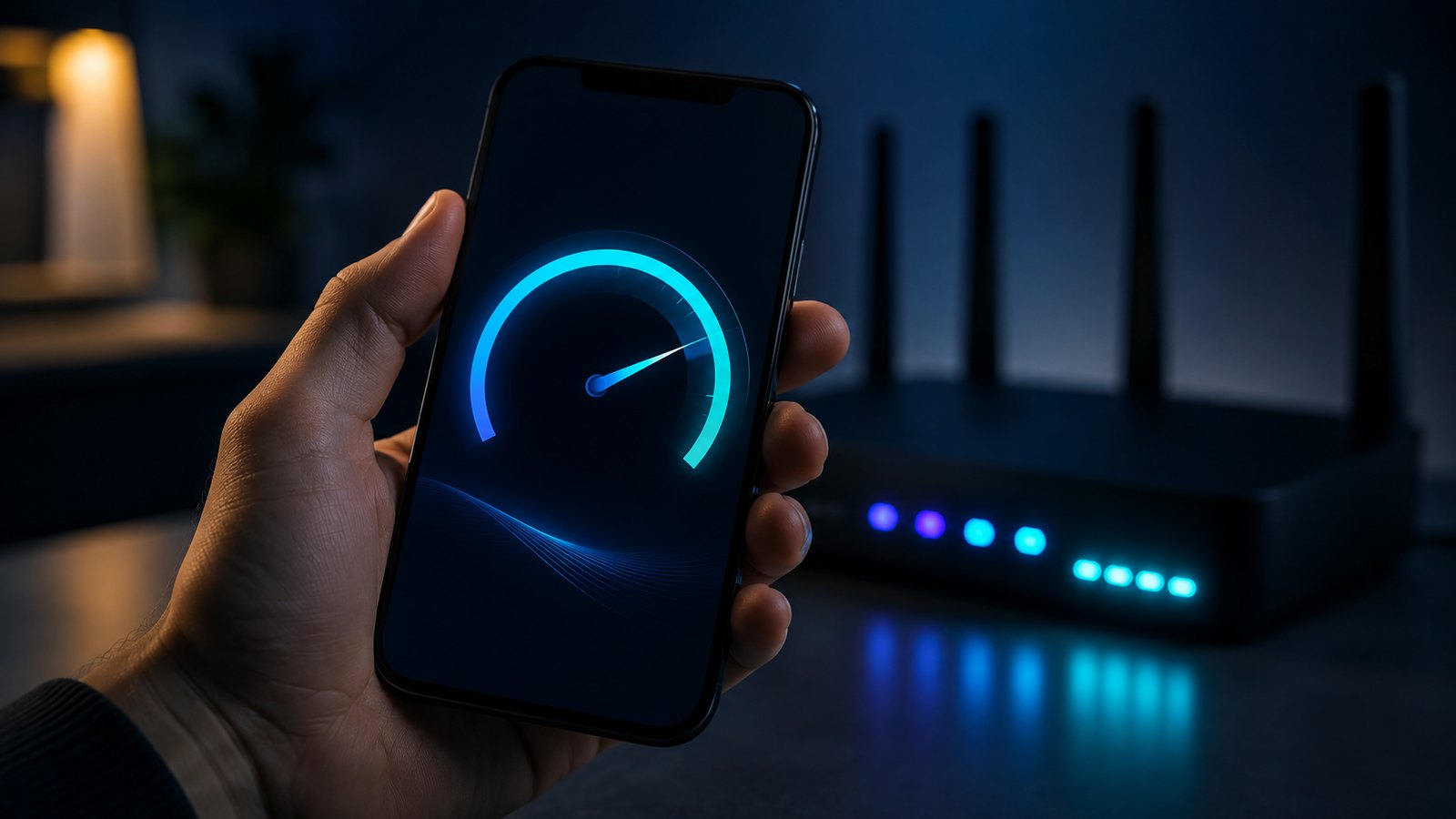
People overestimate this. A single IPTV stream is not demanding — a 4K channel uses roughly the same bandwidth as a 4K Netflix film, and far less than most people’s connections deliver on paper.
| Quality | Needed per stream | Comfortable with |
|---|---|---|
| SD | ~3 Mbps | 10 Mbps |
| HD (720p) | ~7 Mbps | 15 Mbps |
| Full HD (1080p) | ~10 Mbps | 25 Mbps |
| 4K | ~25 Mbps | 50 Mbps |
Two things matter more than the headline number. First, run the speed test on the device that buffers, standing where it stands. A 300 Mbps line can arrive at a bedroom Firestick as 12 Mbps. Second, watch the stability rather than the peak: a connection that swings between 90 and 8 Mbps will buffer where a rock-steady 30 Mbps never does.
If your speed test looks healthy on the TV itself and the stream still stutters, stop blaming bandwidth. Move on to the device.
Wi-Fi Is the Usual Culprit
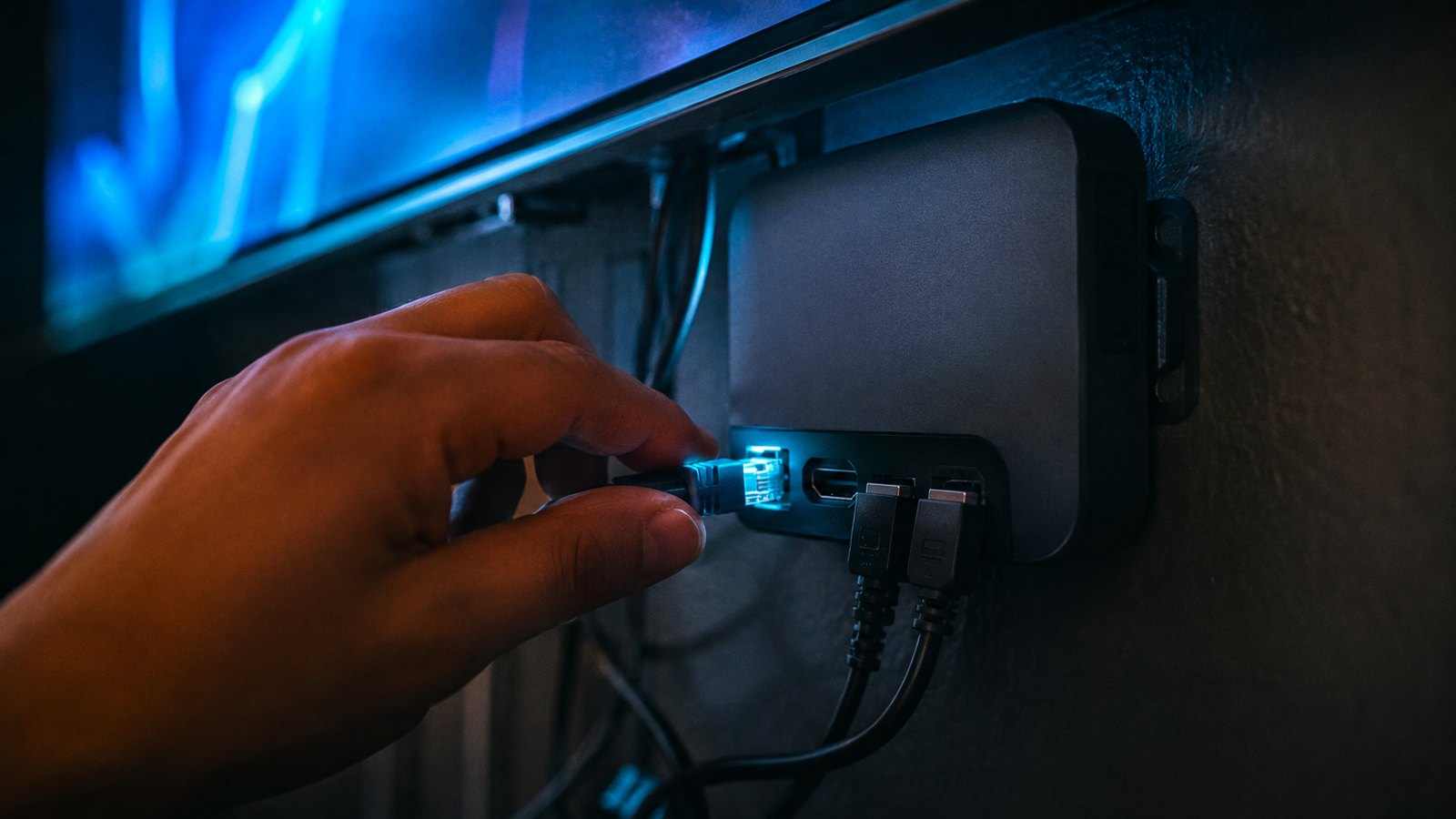
In our support messages, home Wi-Fi is behind more buffering than every other cause combined. A stream needs a steady trickle for hours; Wi-Fi is happy to deliver it in gusts, and a gust that arrives late is a freeze.
- Plug in an Ethernet cable. If your box has a port, or takes a cheap USB Ethernet adapter, this fixes more buffering than every setting change combined. Do this before anything else.
- Use the 5 GHz band. The 2.4 GHz band is crowded with neighbours, microwaves and every smart plug in the house. On the TV’s Wi-Fi settings, join the network name ending in 5G if you have one.
- Move the box, not the router. A Firestick tucked behind a metal TV frame is sitting in a shielded box. A short HDMI extender that brings it out to the side of the screen often adds a bar of signal.
- Reboot the router properly. Power off for 30 seconds, not a quick tap. Do it once a month rather than once a year.
- Count what else is streaming. Two 4K TVs, a games console downloading an update, and a phone backing up photos will starve each other at 8pm.
If you only do one thing: run a cable. A $5 Ethernet cable or a $10 USB adapter solves the majority of buffering complaints we see, permanently, on the first evening.
When the Device Is the Bottleneck
A slow stream freezes. An overloaded device stutters, tears, or drops audio out of sync — the picture keeps moving but everything feels wrong. That is a hardware limit, not a bandwidth one.
The cheap 4K sticks sold three or four years ago struggle with modern 4K streams, especially with a busy app on top. So do devices with 8 GB of storage that has been full for a year. Three fixes, in order of effort:
- Clear the app cache and restart the device. In TiviMate or IPTV Smarters, clear the cache from the app’s settings, then reboot the box. A player that has been running for weeks holds on to memory it no longer needs.
- Turn hardware decoding on. Most players default to software decoding, which makes the CPU do work the video chip is built for. In your player’s playback settings, switch the decoder to hardware (sometimes called HW or HW+). On a Firestick this alone can end the stuttering.
- Raise the buffer size. Players let you set how many seconds they hold in advance. A bigger buffer means a slightly slower channel change and far fewer freezes on a shaky connection.
- Drop to the FHD version of the channel. Most channels exist at several qualities. On a small screen you will not see the difference, and the stream becomes far more forgiving.
If nothing helps and the box is old, that is your answer. A current-generation stick or a small Android TV box is the difference between a device coping and a device on its limit. Our guide to IPTV boxes covers what is worth buying.
ISP Throttling and the VPN Test
Some internet providers slow down heavy video traffic in the evening, and some shape streaming traffic specifically. You cannot see this from a speed test, because speed tests are short and providers do not throttle them.
The test takes two minutes: install a VPN on the device, connect to a server in a nearby country, and play the channel that was buffering. If the buffering stops with the VPN on, the problem was your ISP, not your provider or your equipment. If nothing changes, the VPN was not the answer and you can turn it off.
A VPN adds a small overhead, so pick a nearby server and a provider with fast protocols. Where it helps, it helps consistently, and it is worth keeping on for streaming even if you leave it off for everything else.
When It Is the Provider’s Fault

Sometimes the fault is upstream and none of the above will help. The signs are specific:
- It buffers on every device and every network, including your phone on mobile data.
- It only happens at peak hours, reliably, while everything else in the house streams fine.
- It gets worse during big matches. An oversold service collapses exactly when everyone wants the same channel.
- The same few channels are always bad, while the rest are perfect. That is a broken source on the provider’s side, and a message to support usually fixes it within a day.
This is the difference between a cheap reseller and a service that owns its capacity. The $2-a-month subscriptions people find on Telegram are cheap because one server is carrying far more customers than it can hold on a Saturday afternoon. We wrote about why the price tells you this in how much IPTV should cost.
Message support before you cancel. A good provider can move your line to a different server, swap a bad channel source, or tell you honestly that the fault is at your end. If support goes quiet during peak hours, you have learned something more useful than any speed test.
The Order to Try Things
Work down this list. Stop when the buffering stops — there is no point changing five settings at once and never learning which one mattered.
- Test on mobile data. Splits the problem into “my house” or “their server” in two minutes.
- Run a cable. Ethernet into the box, or a USB Ethernet adapter on a Firestick.
- Reboot the router and the box. Thirty seconds off, both of them.
- Switch to 5 GHz if a cable is not possible.
- Turn on hardware decoding in the player’s playback settings.
- Raise the buffer and clear the app cache.
- Play the FHD version of the channel instead of 4K.
- Test with a VPN to rule out ISP throttling.
- Message support with the channel name and the time it happens.
Two connections count as two. If someone else is watching on your login while you watch on the TV, you are using two of your plan’s simultaneous connections. Going over the limit can look exactly like buffering. It is worth checking before you rebuild your network.
Buffering fixed but the guide still blank? The TV guide arrives as a separate data feed from the video, so it fails on its own and needs its own checks — see what to do when the IPTV EPG is not working.
Further reading
- Sharo5’s buffering troubleshooting guide — the same fixes ordered by how long each one takes.
- IPPlayTV on peak-hour slowdowns — why 8pm looks different from 2pm on the same line.
New to Zentrix TV? Start with the Zentrix TV review, then the price guide to pick a plan.
Frequently Asked Questions
Why does my IPTV keep buffering?
Usually Wi-Fi, an underpowered streaming box, ISP throttling, or an oversold server on the provider’s side. Play the same channel on your phone over mobile data: if it works there, the problem is in your home; if it buffers there too, it is the provider.
How much internet speed do I need for IPTV?
About 10 Mbps for Full HD and 25 Mbps for 4K per stream, measured at the device itself rather than at the router. Stability matters more than the peak number — a steady 30 Mbps beats a connection that swings between 90 and 8.
Does Ethernet stop IPTV buffering?
More often than any other fix. A wired connection delivers the steady trickle a live stream needs, where Wi-Fi delivers it in bursts. If your box has no Ethernet port, a USB Ethernet adapter costs around $10 and does the same job.
Will a VPN fix IPTV buffering?
Only if your ISP is slowing down streaming traffic. Connect a VPN to a nearby server and replay the channel: if the buffering stops, throttling was the cause. If nothing changes, the VPN is not your fix.
Why does IPTV only buffer at night?
Because that is when both the network and the server are busiest. If your other streaming apps are fine at the same time, the provider’s server is oversold rather than your line being congested.
Why does only one channel buffer?
That channel’s source is having a problem, not your connection. Report it to support with the exact channel name — a working provider swaps the source, usually within a day.
Buffering every evening is a provider problem, not your problem.
Zentrix TV runs on capacity we own, with 70,000+ live channels and 260,000+ titles from $6.15 a month. Anti-freeze servers, and support that answers when the match is on.