Short answer
An empty or wrong EPG is almost never a broken subscription — the guide arrives as a separate data feed from the video, so it fails on its own. In order: give it ten minutes to download on first load, force a manual EPG refresh in the app, fix the time zone and EPG offset settings, clear the player’s cache, and make sure you logged in with Xtream Codes rather than M3U. Those five steps clear the large majority of cases.
Nothing makes a service feel broken faster than a blank TV guide. The channels play, the picture is sharp, and yet the grid that tells you what is on is empty — or worse, confidently showing the wrong programme. The good news is that this is the most fixable fault in IPTV, because the thing that broke is small and separate.
What the EPG Actually Is (and Why It Breaks Alone)
EPG stands for Electronic Programme Guide — the grid of what is on now, next and for the coming days. The important thing to understand is that it is not part of the video stream. Your player pulls two completely different things from the server:
- The streams. Live video, requested channel by channel as you watch.
- The EPG. One large XML file listing thousands of programmes across thousands of channels, downloaded in the background and cached on your device.
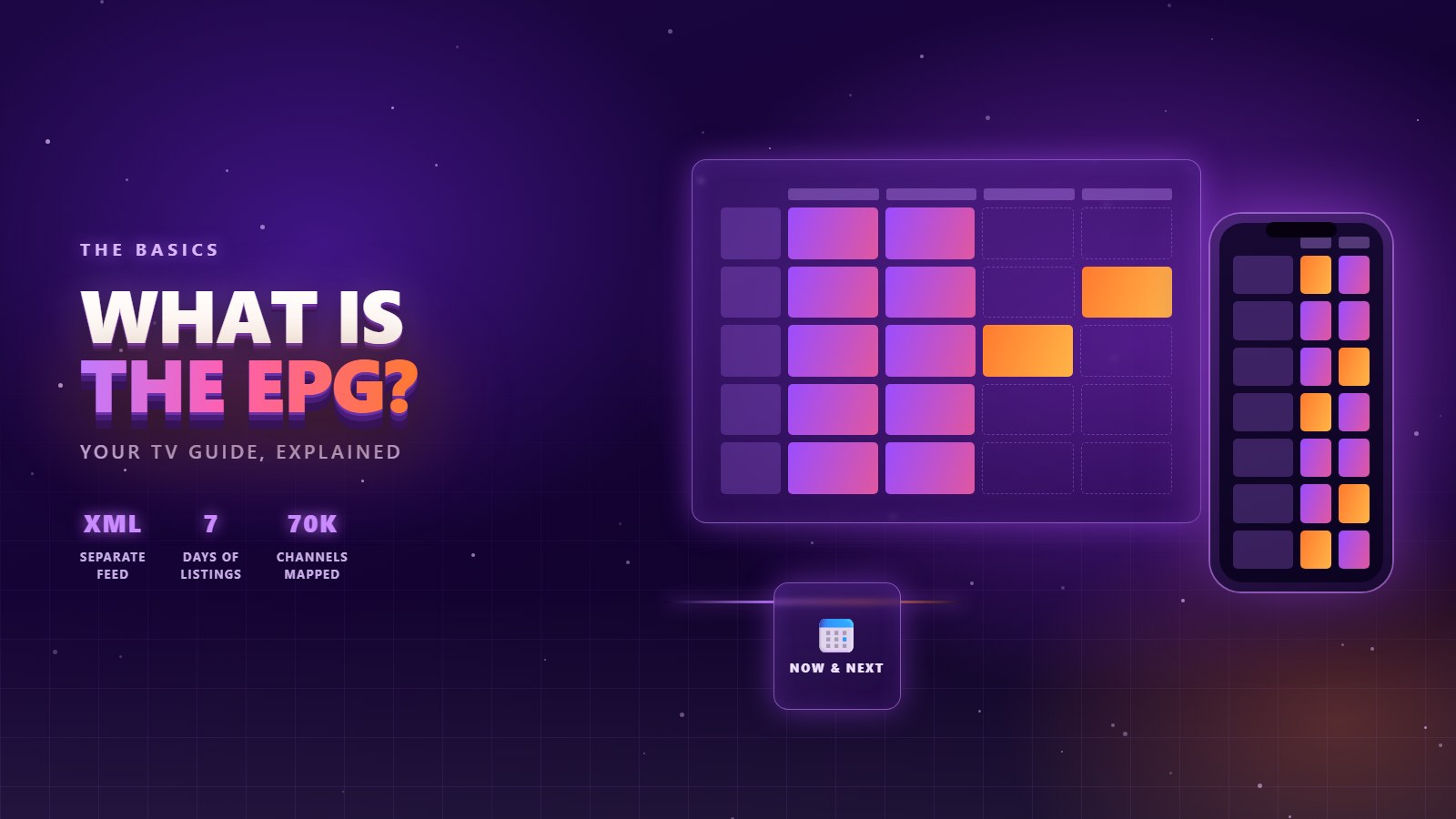
That separation is the whole story. If the video works, your subscription, your login and your connection to the server are all fine — so stop suspecting them. The fault is in downloading, parsing, matching or displaying that one XML file, and every fix below targets one of those four stages.
Fix 1 — Wait Ten Minutes on First Load
This is the commonest “problem” of all, and it is not a problem. The EPG file covers 70,000+ channels and several days of listings; it is tens of megabytes and the player has to download and index the whole thing before it can draw a single row.
On a fresh install, over Wi-Fi, on a modest stick, that can take five to fifteen minutes. During that time the guide looks entirely empty and most people conclude it is broken and start changing settings — which restarts the download from scratch.
Set it up, then leave it alone. Enter your login, open the app, and go and make a coffee. Come back in fifteen minutes and check the guide before you touch a single setting. A surprising share of “EPG not working” reports are solved by patience.
Fix 2 — Force a Manual EPG Refresh
Players cache the guide and update it on their own schedule, usually once a day. If the download failed once — a dropped Wi-Fi packet, a restart at the wrong moment — the app may sit on the broken cache until tomorrow. Forcing a refresh is the fix, and it is in a slightly different place in each app:
- TiviMate. Settings → Playlists → select your playlist → EPG → “Update now” or “Force update”.
- IPTV Smarters Pro. Settings → EPG → “Refresh EPG”, or from the main screen pull down on the guide view.
- XCIPTV. Settings → General → “Reload EPG data”.
- Smart IPTV / Set IPTV. Restart the app entirely — that is the refresh on these players.
Let it finish before judging it. If the app shows a progress bar or a “downloading guide” toast, that is the right sign.
Fix 3 — The Guide Is Populated but the Times Are Wrong
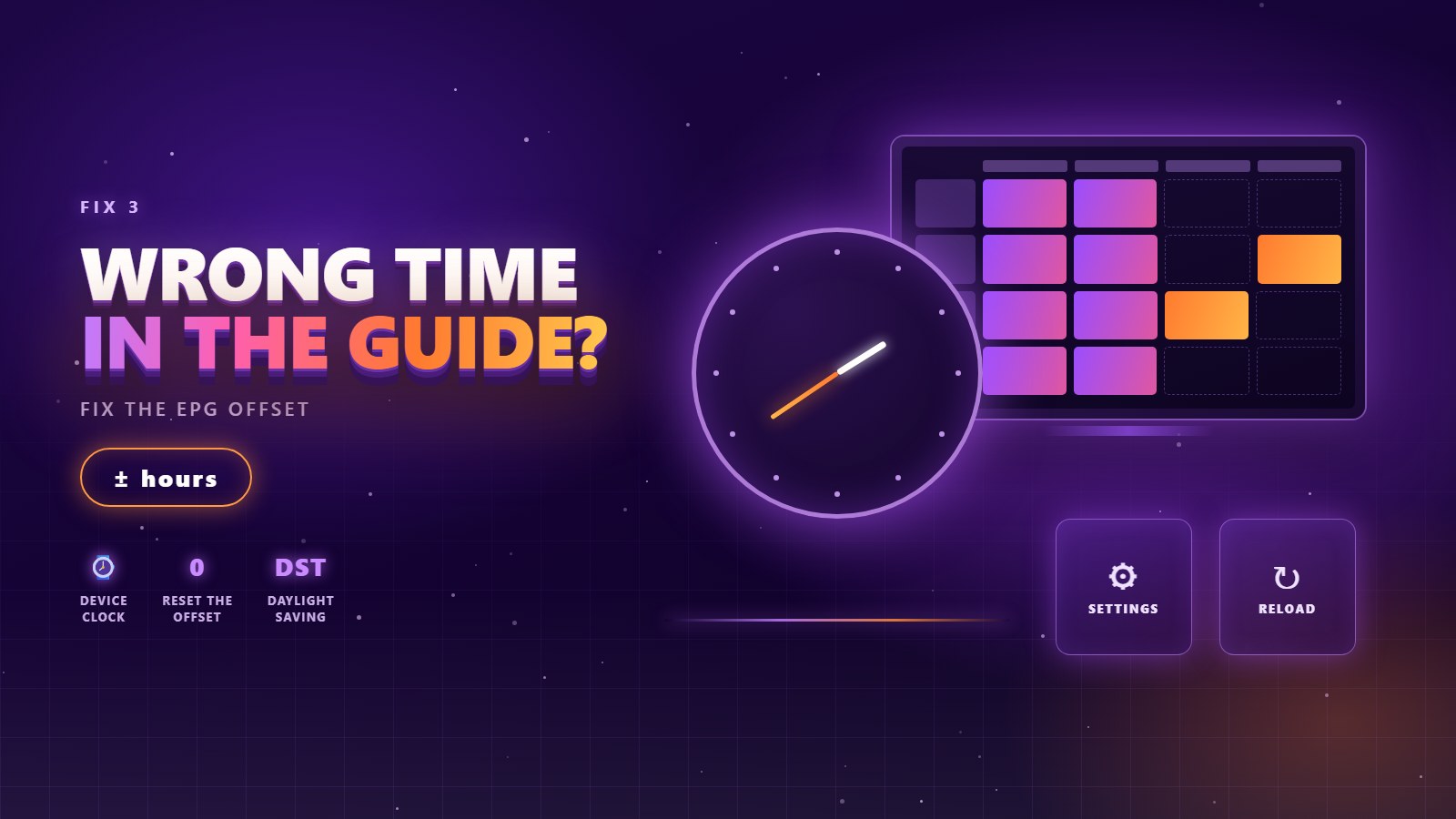
This is the second-most-common complaint and it has the cleanest diagnosis. If every programme in the guide is out by exactly one, two or three hours, nothing is broken — a clock is wrong somewhere. Random, uneven errors mean something else; a uniform offset means a setting.
Check these three in order:
- The device clock. On a Firestick, Android box or TV, confirm the date, time and time zone are correct and set to automatic. A stick that has lost its clock throws the whole guide off.
- The app’s EPG time-shift setting. Most players have an “EPG offset” or “Time shift” option, in hours. If someone set it to +1 to fix a previous problem, it is now causing this one. Set it back to 0 and see what happens.
- Daylight saving. The clock changes in spring and autumn are the single biggest cause of a sudden one-hour offset on a guide that worked fine the day before. Nothing broke — your device did not follow the change.
Fix 4 — You Logged In With M3U Instead of Xtream Codes
This one is invisible until you know about it, and it explains a large share of permanently empty guides.
Every player offers two ways to add a subscription. Xtream Codes takes a username, password and server URL, and the player asks the server for the EPG as a proper structured feed. M3U takes one long playlist URL, and the guide depends on an tvg-url tag inside the playlist that some apps read poorly or ignore entirely.
The result: on an M3U login your channels can play perfectly while the guide stays blank forever, no matter how many times you refresh it.
If your guide has never worked at all, check this first. Remove the playlist, add it again, and pick the Xtream Codes API option rather than the M3U URL. It is two minutes of work and it is the fix more often than anything else on this page. The player guide covers the difference in more detail.
Fix 5 — Clear the Player Cache and Re-Add the Playlist
A half-downloaded or corrupted EPG cache is stubborn. The app believes it has data, so it will not fetch more, and it draws whatever fragment it has. Clearing it forces a clean start:
- Clear the app’s cache from the device settings. On Fire TV and Android: Settings → Applications → Manage installed applications → your player → Clear cache. Clear cache first, not data — data removes your login.
- Reopen the app and force an EPG update using the paths in fix 2.
- If it is still broken, remove and re-add the playlist. Delete the playlist inside the app and add it again with your Xtream Codes details. This rebuilds both the channel list and the guide index from scratch.
- As a last resort, reinstall the player. Faster than it sounds, and it clears settings you may have changed and forgotten.
Fix 6 — Only Some Channels Have a Guide
A partly filled guide is a different fault from an empty one, and it is usually not fixable from your sofa — which is worth knowing before you spend an hour on it.
Each channel in the playlist carries an identifier (the tvg-id) that has to match an entry in the EPG file. When they match, the listings appear. When a channel is renamed upstream, or a small regional channel simply has no listings published anywhere, that row stays empty while everything around it works.
Two things you can do:
- Check whether the channel has a duplicate. Large playlists often carry the same channel in several quality tiers or country groups. Frequently one copy has a full guide and another does not. Search the channel name and try the others.
- Tell us which channels. Missing
tvg-idmappings are fixed on our side, not yours. Send the channel names over WhatsApp and we will correct the mapping — it is a routine change, not a complaint.
Fix 7 — The Network Is Fine for Video but Not for the Guide
This sounds backwards but it is real. Streaming video is a steady, error-tolerant flow — drop a packet and you get a momentary blip. Downloading the EPG is one large file that has to arrive intact. On a marginal Wi-Fi link the video survives and the download fails, repeatedly.
So if the guide downloads to 60% and stops, or only ever fills in for a day ahead:
- Try Ethernet, even temporarily, just to complete one full EPG download. Once it is cached, Wi-Fi is enough to maintain it.
- Move the device or the router if a cable is impossible, and prefer the 5 GHz band for anything within a couple of rooms.
- Update the guide when the house is quiet rather than at peak evening hours.
- Turn off any VPN during the download. Some VPN routes throttle or time out on a large file even while video runs fine. The buffering guide goes through the connection checks in full.
Fix 8 — The Guide Only Shows One or Two Days
Several players limit how far ahead they store listings, to keep memory use down on cheap devices. If you can see tonight but not the weekend, look for a setting called “EPG days”, “Guide days” or “Number of days to load” and raise it — TiviMate and XCIPTV both expose this.
Raise it gradually. Setting a 7-day guide on 70,000 channels on an entry-level stick is a good way to make the whole app sluggish. Three to five days is the sweet spot for most setups, and building a favourites list first makes the guide dramatically faster to load and to scroll.
Fix 9 — Try a Different Player for Sixty Seconds
When nothing above works, this is the test that ends the argument. Install a second free player — IPTV Smarters Pro on any platform — put the same Xtream Codes details in, and look at the guide.
- The guide works in the second app. The feed is fine and the fault is in the first app’s settings or cache. Reinstall it clean, or simply keep the one that works.
- The guide is empty in both. Now it is worth contacting us, and you can say exactly that — it saves a round of questions and we can check the feed for your line directly.
Before you message support, note three things: your device and player app, whether you logged in with Xtream Codes or M3U, and whether the guide is empty, partial or offset by a fixed number of hours. Those three answers usually identify the cause before anyone has to test anything.
Further reading
- KiloTV on taming a huge channel list — favourites and groups, and why they make the guide load faster.
- Sharo5 on player settings worth changing — the handful of options that actually affect day-to-day playback.
Setting up on a new screen? The Zentrix TV app guide shows which player to install on Firestick, Samsung, LG and iPhone, and where each part of your login goes.
Frequently Asked Questions
Why is my IPTV EPG not working?
The guide is a separate data feed from the video, so it can fail while channels play perfectly. The usual causes are an EPG download that has not finished yet, a stale cache, an M3U login instead of Xtream Codes, or a wrong time-zone setting. Waiting ten minutes then forcing a manual EPG refresh solves most cases.
How do I refresh the EPG on IPTV Smarters?
Open Settings, go to the EPG section and choose “Refresh EPG”, or pull down on the guide view from the main screen. Let the download finish before judging the result — on a large playlist it can take several minutes.
Why is my IPTV guide showing the wrong time?
If every programme is out by exactly one or two hours, it is a clock setting rather than a broken feed. Check that the device’s time zone is correct and set to automatic, then set the app’s “EPG offset” or “time shift” option back to 0. Daylight saving changes are the usual trigger.
Why do only some channels have a TV guide?
Each channel carries an identifier that must match an entry in the guide file. When a channel is renamed upstream, or a small regional channel has no published listings, that row stays empty while the rest work. Try a duplicate of the same channel in another group, and send us the channel names so we can correct the mapping.
Does an M3U playlist affect the EPG?
Yes, significantly. An M3U login relies on a guide tag inside the playlist that some players read poorly or ignore, which often leaves the guide permanently blank. An Xtream Codes login requests the EPG as a proper structured feed. If your guide has never worked, re-add the playlist using Xtream Codes.
How long does an IPTV EPG take to load?
On a first install, five to fifteen minutes is normal. The file covers tens of thousands of channels across several days, and the player has to download and index all of it before drawing a single row. After that it updates in the background, usually once a day.
Will clearing the app cache delete my subscription details?
No. Clearing the cache removes only the downloaded guide and temporary files. Clearing the app’s data is the one that removes your login, so choose “Clear cache” and leave “Clear data” alone unless you are prepared to enter your details again.
A guide that fills in, on every channel.
Zentrix TV runs a maintained EPG across 70,000+ live channels and 260,000+ films and series, from $6.15 a month — and if a channel’s listings are missing, we map it for you.