Short answer
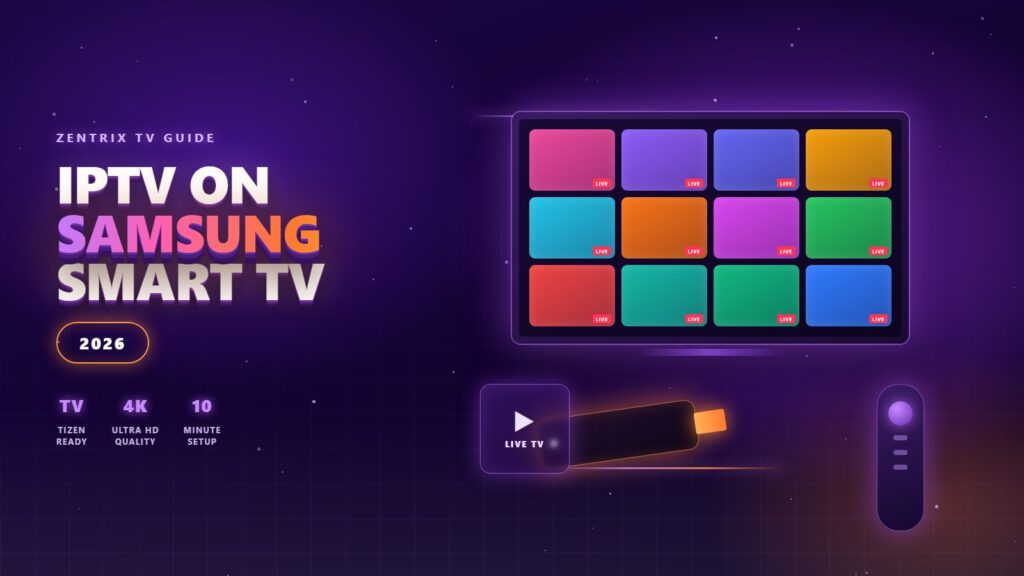
A Samsung Smart TV runs Tizen, not Android, so you cannot sideload TiviMate or the usual Firestick apps. Three methods work: install IPTV Smarters Pro from Samsung’s own app store where it is listed, use a Tizen player such as Smart IPTV or Set IPTV (a small one-time fee per television), or plug in a $30 Fire TV Stick and ignore Tizen completely. Your Zentrix TV login works in all three.
Almost every IPTV guide on the internet quietly assumes you are on Android. Samsung owners follow along for four steps, reach “enable unknown sources”, and discover the setting does not exist. It is not you — it is the operating system, and once you know that, the answer takes ten minutes.
Why a Samsung TV Is Not Like a Firestick
Firesticks, Android boxes and most Android TVs run a version of Android. That is why you can sideload apps onto them, and why the internet’s IPTV advice is written for them. Samsung does not use Android. Since 2015 every Samsung Smart TV has run Tizen, Samsung’s own operating system, and LG runs its own equivalent called webOS.
Two consequences follow, and they explain nearly every problem people hit:
- There is no sideloading. No “unknown sources”, no Downloader app, no APK files. The only apps that go onto a stock Samsung TV are the ones in Samsung’s own store.
- The app catalogue is small and it moves. Samsung approves and removes IPTV players on its own schedule and varies them by country. An app a video showed last year may simply not be listed on your set today.
None of that makes a Samsung a bad IPTV television. The panel is usually better than whatever is inside a cheap box, and the built-in decoder handles 4K happily. You just have to take one of three doors rather than the Android one.
The Three Methods, Compared
Here is the honest trade-off before you spend anything. Every one of these accepts an Xtream Codes or M3U login, so all of them work with a Zentrix TV subscription.
| Method | Cost | Difficulty | Best for |
|---|---|---|---|
| IPTV Smarters Pro from the Samsung store | Free | Easiest | Try this first — if it is listed on your TV, you are done |
| Smart IPTV / Set IPTV (Tizen apps) | ~$6 one-time, per TV | Medium | Older Samsungs where Smarters is missing |
| Fire TV Stick in a spare HDMI port | ~$30 one-time | Easy | Anyone who wants TiviMate and no platform limits |
| Casting from a phone | Free | Easy | Occasional viewing only, not a daily setup |
If you want the one-line recommendation: search your TV’s store for IPTV Smarters Pro. If it is there, use it and stop reading. If it is not, buy a Firestick — it is cheaper than most people expect, it runs the best player app on the market, and it will outlive the television’s app support.
Method 1 — IPTV Smarters Pro From the Samsung Store
This is the free route and the one to attempt first. It takes about five minutes.
- Open the Apps section. Press the Home button on the Samsung remote, move along the menu to Apps, then open the magnifying-glass search at the top right.
- Search for “Smarters”. Type it with the on-screen keyboard. You are looking for IPTV Smarters Pro. If nothing comes back, go to method 2 or 3 — it is not offered in your region and retrying will not change that.
- Install and open it. Select Install, wait for the download, then Open, and accept the terms screen it shows on first launch.
- Choose “Login with Xtream Codes API”. Not the M3U option. Xtream Codes pulls in your channels, the full TV guide and the on-demand library as separate sections, and it updates itself when we add channels.
- Enter the three details from your welcome message. Username, password and server URL, exactly as sent, including the port number if there is one. The playlist name is yours to choose.
- Let it load, then test a 4K channel. The app builds your list in a few seconds. Open a big channel and watch for thirty seconds — if it plays clean, you are finished.
Type the server URL carefully. Nine out of ten “invalid credentials” messages on a television are a typo made on an on-screen keyboard — a missing http://, the wrong port, or an l entered as a 1. Enter it once slowly rather than three times quickly.
Method 2 — Smart IPTV and Set IPTV (the Tizen Apps)
If Smarters is not in your store — common on sets from 2016 to 2019 — the established Tizen players are Smart IPTV (often listed as SIPTV) and Set IPTV. They work the same way and cost roughly the same: free for a seven-day trial, then a one-time fee of about $6 per television, paid on the developer’s own website, not to us.
These apps work differently from Smarters, and the difference is what trips people up. You do not type your login into the TV at all. Instead:
- Install the app and note the MAC address. On first launch it prints a MAC address on screen — a string like
00:1A:2B:3C:4D:5E. Write it down. - Open the developer’s website on a phone or laptop. Enter that MAC address in their upload form.
- Paste your M3U playlist URL there. This method needs the M3U link rather than the Xtream username and password — ask us and we will send it.
- Pay the one-time activation. After the trial ends the app asks for the small fee, tied to that MAC address permanently.
- Restart the app on the TV. Your channel list appears. Any change you make on the website shows up on the television after a restart.
The fee follows the TV, not you. That one-time payment is locked to the television’s MAC address. Replace the set and you pay again on the new one; on some models a factory reset also changes the address. It is a small amount, but it is exactly why a Firestick often works out better value across two televisions.
Method 3 — The Firestick Shortcut
This is what most of our Samsung customers end up doing, and it is worth understanding why before you spend $6 on a Tizen app instead.
A Fire TV Stick plugs into a spare HDMI port and turns your Samsung into an Android device as far as apps are concerned. You keep the Samsung’s picture quality and speakers; you simply stop using its software. In return you get the full player catalogue — including TiviMate, which is a genuinely better daily experience than anything on Tizen, with a faster guide, proper favourites and recording.
The setup is the standard Firestick route: install Downloader, enable apps from unknown sources in the developer options, install your player, enter your Xtream Codes login. Our installation guide walks through it screen by screen, and the player comparison covers which app to put on it.
The arithmetic is simple. One Tizen app on one TV is about $6. A Firestick is about $30 but moves between televisions, works in a hotel room, survives your next TV upgrade, and runs software several years ahead. If you own one Samsung and want the cheapest possible answer, use Tizen. In every other case, buy the stick.
LG, Sony, Hisense and the Rest
The same logic sorts every other brand, so check which camp yours is in before following any guide:
- LG (webOS). The same situation as Samsung — no sideloading, small store. Smart IPTV and Set IPTV both publish webOS versions with the same MAC-address activation, and IPTV Smarters appears in some regions. Everything above applies almost word for word.
- Sony, Philips, TCL, Hisense (Android TV / Google TV). These are Android. Install IPTV Smarters or TiviMate straight from the Play Store; you need none of this article.
- Roku TVs. The most restrictive of all. There is no reliable IPTV player on Roku. Plug in a Firestick or an Android box rather than spending an evening on it.
- “Smart” TVs from before roughly 2015. Treat them as ordinary screens. An external stick is the only sensible route.
When It Does Not Work
Four faults cover nearly every support message we get from a Samsung owner, and each has a quick test:
- “Invalid credentials” or “cannot connect”. Almost always a typo in the server URL or a missing port. Re-enter it slowly, then confirm the same login works on a phone. If the phone works and the TV does not, it is the television’s entry, not your subscription.
- The app is not in the store. Not fixable. Samsung’s catalogue varies by country and model year. Go to method 2 or 3.
- Channels load but buffer. A television’s built-in Wi-Fi aerial is often the weakest part of the set. Run an Ethernet cable to it if you possibly can — it is the single most effective fix and costs the price of a cable. The buffering guide has the full sequence.
- The guide is empty or an hour out. That is an EPG problem rather than a Samsung one. Give the app a few minutes on first load and check the time-zone setting inside the app before assuming anything is broken.
Test on a phone before you troubleshoot the TV. Install IPTV Smarters on your phone, enter the same details, and see whether it plays. Thirty seconds of that tells you whether you are debugging the television or the subscription — and it is nearly always the television.
Further reading
- Sharo5 on smart TV setups — the Tizen and webOS routes written up brand by brand.
- IPPlayTV on sticks versus built-in apps — why an external player usually wins on an older television.
Not sure which player suits your device? Our Zentrix TV setup guide covers every device step by step, and the Zentrix TV review sums up what you get on the line.
Frequently Asked Questions
Can I watch IPTV on a Samsung Smart TV?
Yes. Samsung TVs run Tizen rather than Android, so you install IPTV Smarters Pro from Samsung’s own app store where it is listed, or use a Tizen player such as Smart IPTV or Set IPTV. If neither suits, plugging in a Fire TV Stick gives you the full range of Android players.
How do I install IPTV Smarters on a Samsung TV?
Press Home, open Apps, search for “Smarters”, and install IPTV Smarters Pro if it appears. Open it, choose “Login with Xtream Codes API”, then enter the username, password and server URL from your welcome message. If the app does not appear in search, it is not offered in your region on that model.
Why can't I sideload an IPTV app onto my Samsung TV?
Because Tizen has no sideloading option. There is no “unknown sources” setting and no APK support, so only apps published in Samsung’s store can be installed. This is why TiviMate and other popular Android players are unavailable on Samsung televisions.
Is Smart IPTV free on Samsung?
It is free for a seven-day trial, after which the developer charges a one-time fee of roughly $6. The payment is tied to your television’s MAC address and goes to the app developer, not to your subscription provider. A second television needs a second payment.
Do I need a Firestick if I have a Samsung Smart TV?
Not necessarily, but many people prefer one. A Fire TV Stick costs about $30, runs TiviMate and every other Android player, moves between televisions and travels with you. If the Samsung store has IPTV Smarters and you are happy with it, you do not need anything extra.
Does IPTV work on an LG Smart TV too?
Yes, in the same way. LG runs webOS, which like Tizen has no sideloading. Smart IPTV and Set IPTV both publish webOS versions using the same MAC-address activation, and IPTV Smarters is in the LG store in some regions.
Why does my Samsung TV buffer when my phone does not?
Usually the television’s built-in Wi-Fi aerial, which is often weaker than a phone’s. Connect the TV to the router with an Ethernet cable, or move it closer to the router, before changing anything else. A wired television is the most reliable IPTV setup there is.
Your Samsung is ready — it just needs channels.
Zentrix TV works in IPTV Smarters, Smart IPTV, Set IPTV and every Android player, with 70,000+ live channels and 260,000+ films and series from $6.15 a month.